RichVault
Get to know RichVault

Save it. Tag it.
Find it instantly.

See how RichVault turns useful websites and apps into searchable cards people can return to later.

Start here

The 25-second overview

From a useful link to a card you can find again.

The full story

Three ways to use RichVault

Follow the steps from saving your first card to finding and using it later.

01 · Save a card

Why save useful finds, then add a title and URL.

02 · Generate and tag

Generate a description and choose suggested Smart Tags.

03 · Find it later

Search, open, organize, share, and rediscover cards.

These videos use illustrated recreations of RichVault v1.3.4 and public learning sites as examples. Sample card descriptions are illustrative. Generate offers tag suggestions; users choose which tags to save.

Onboarding tour

Thirteen steps, from save to find

The refreshed in-app tour adds dedicated steps for Generate, Save, Search, and Create Deck.
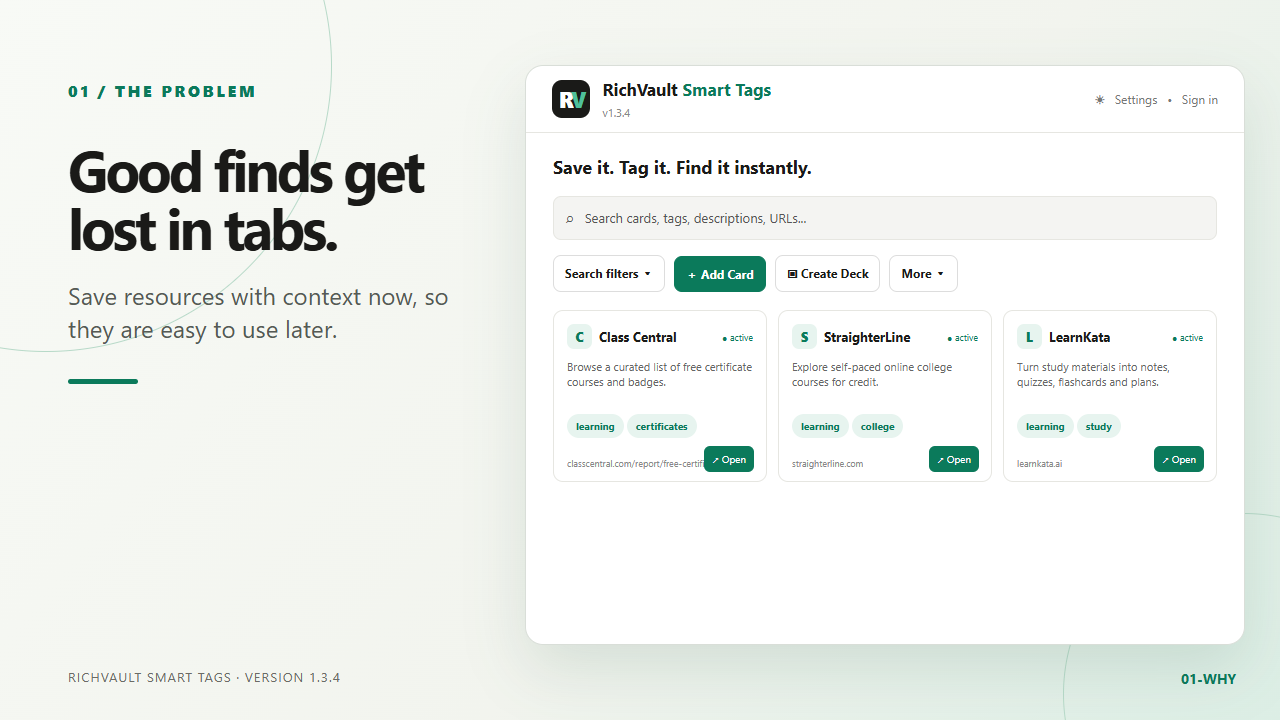
Saved learning websites in RichVault
1 · Why RichVault
Client work, learning, and daily use examples
2 · Who it helps
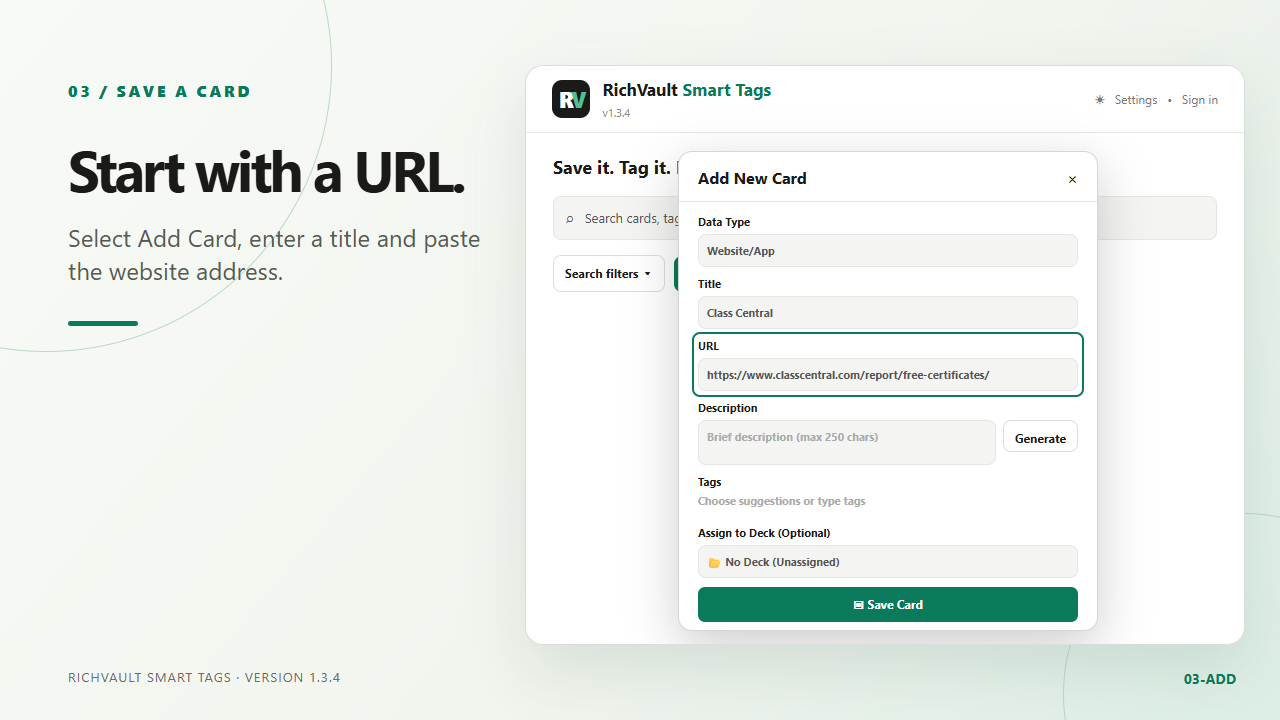
Add Card form with a website title and URL
3 · Add a card
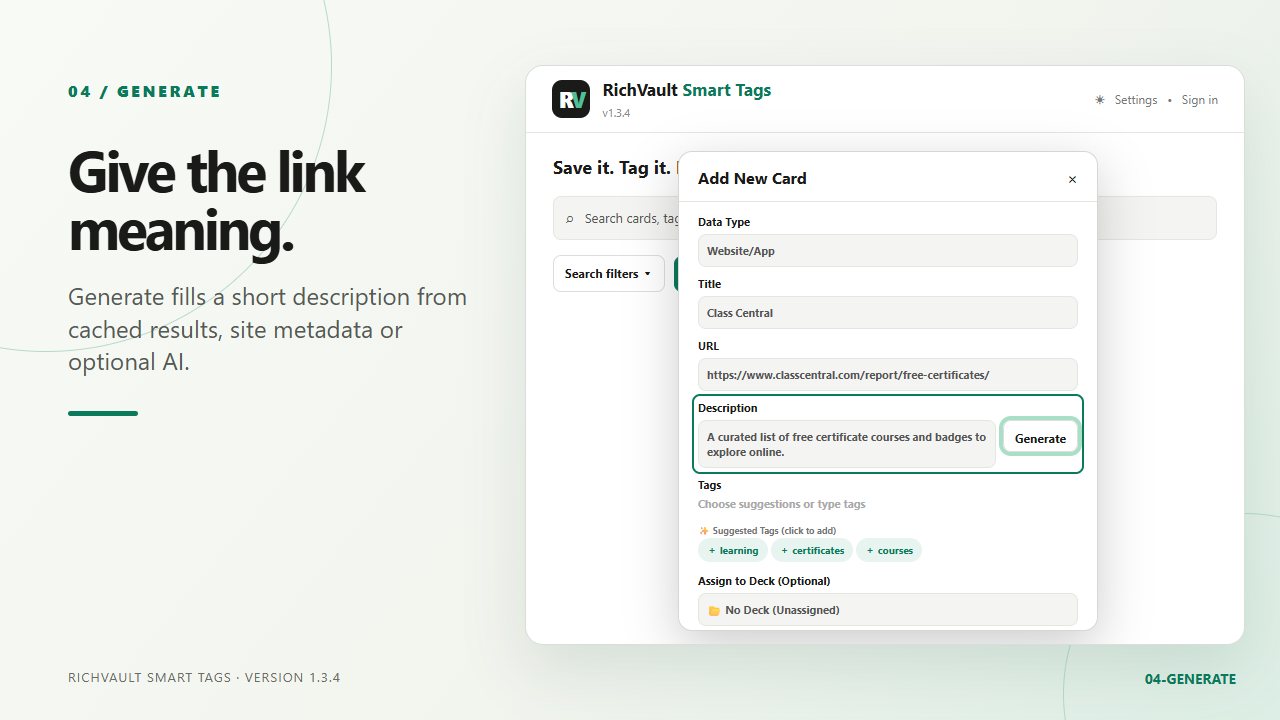
Generate a description and see tag suggestions
4 · Generate a description
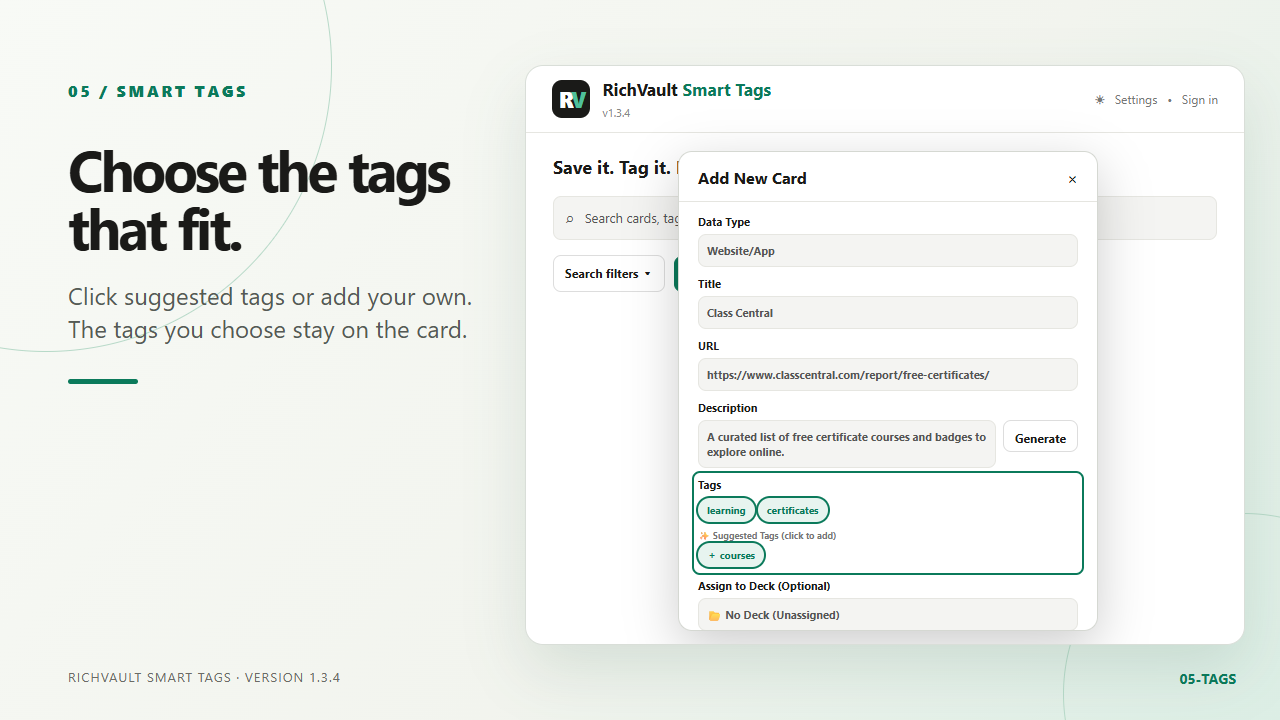
Choose suggested smart tags
5 · Choose smart tags
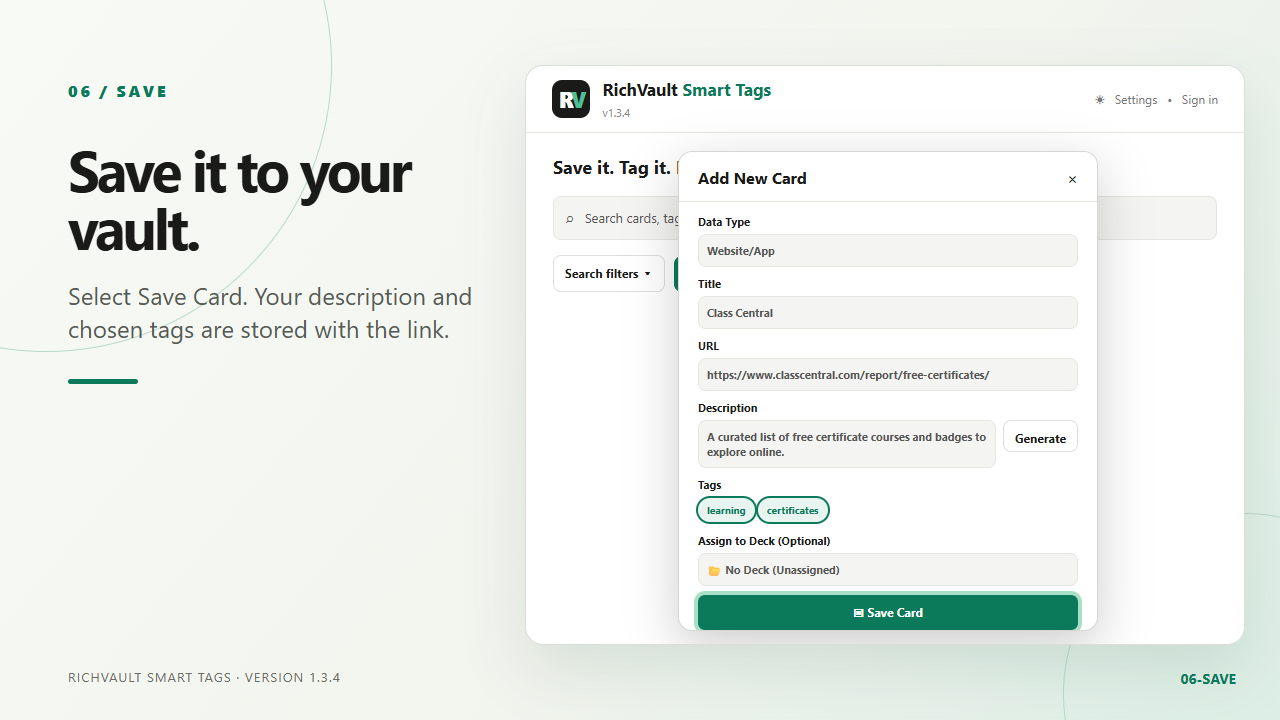
Save the card with its description and tags
6 · Save the card
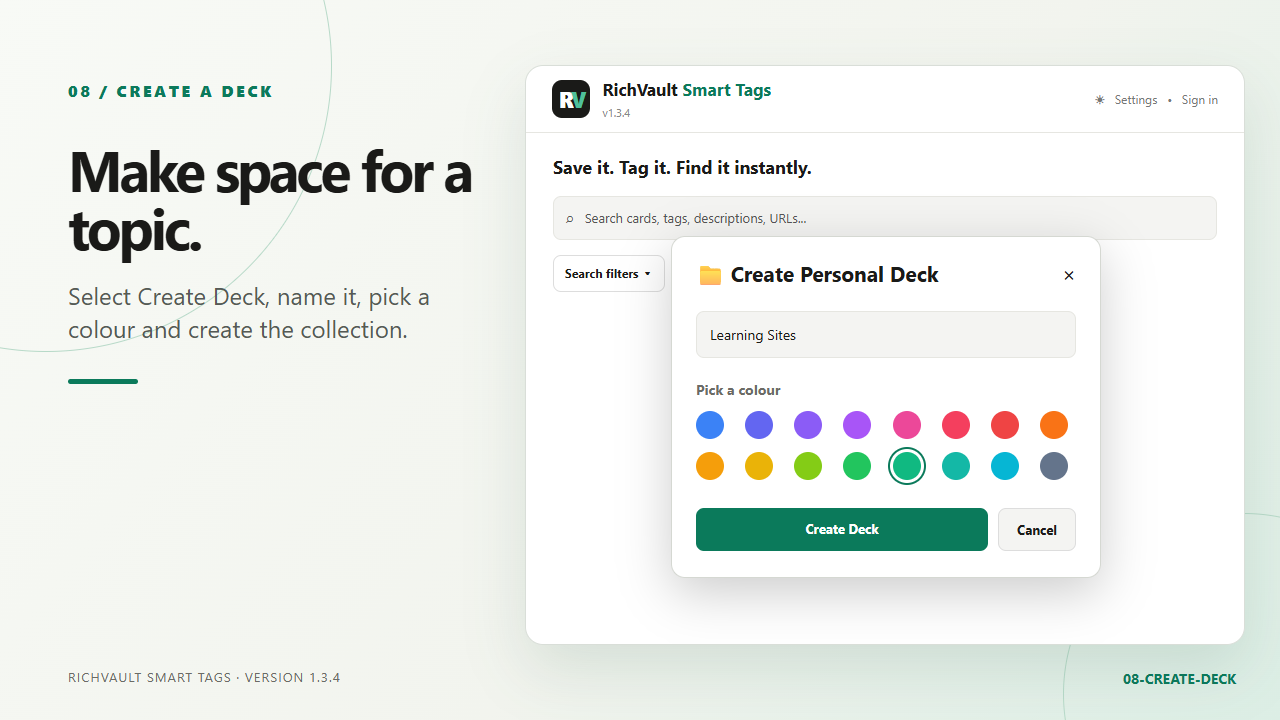
Create Personal Deck dialog with name and colour choices
7 · Create a Deck
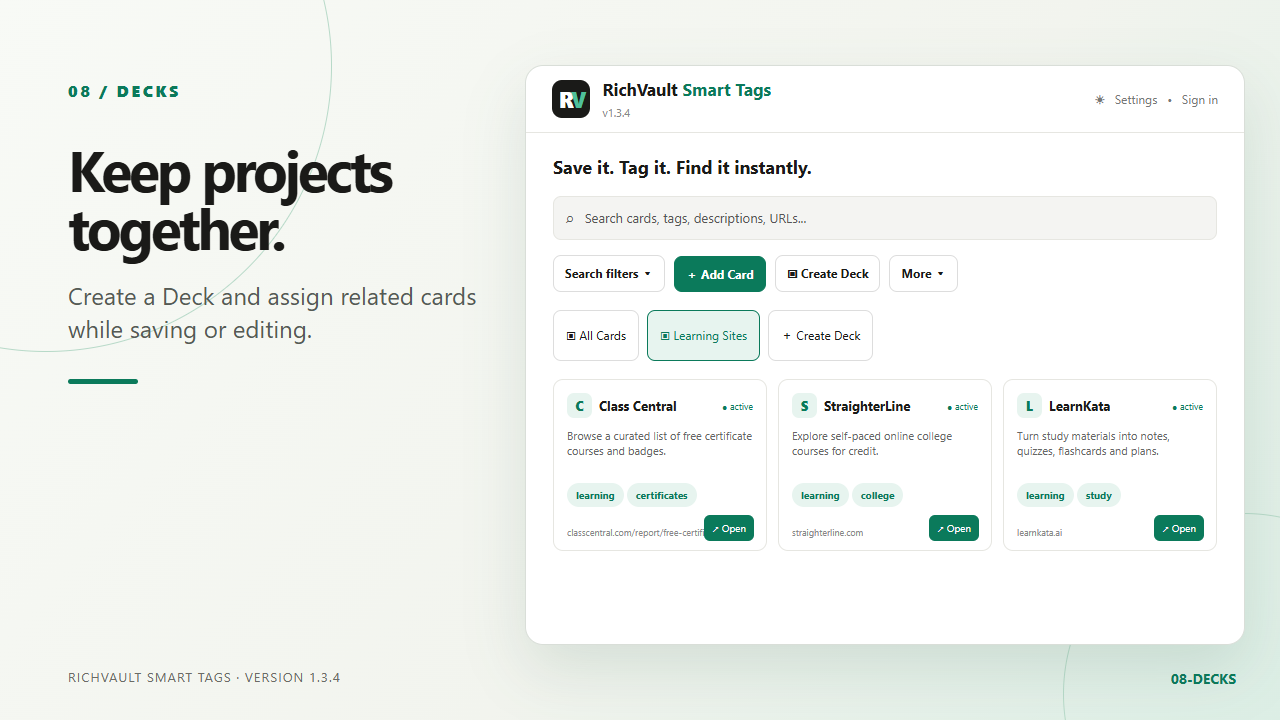
Learning Sites Deck selected above saved cards
8 · Organize with Decks
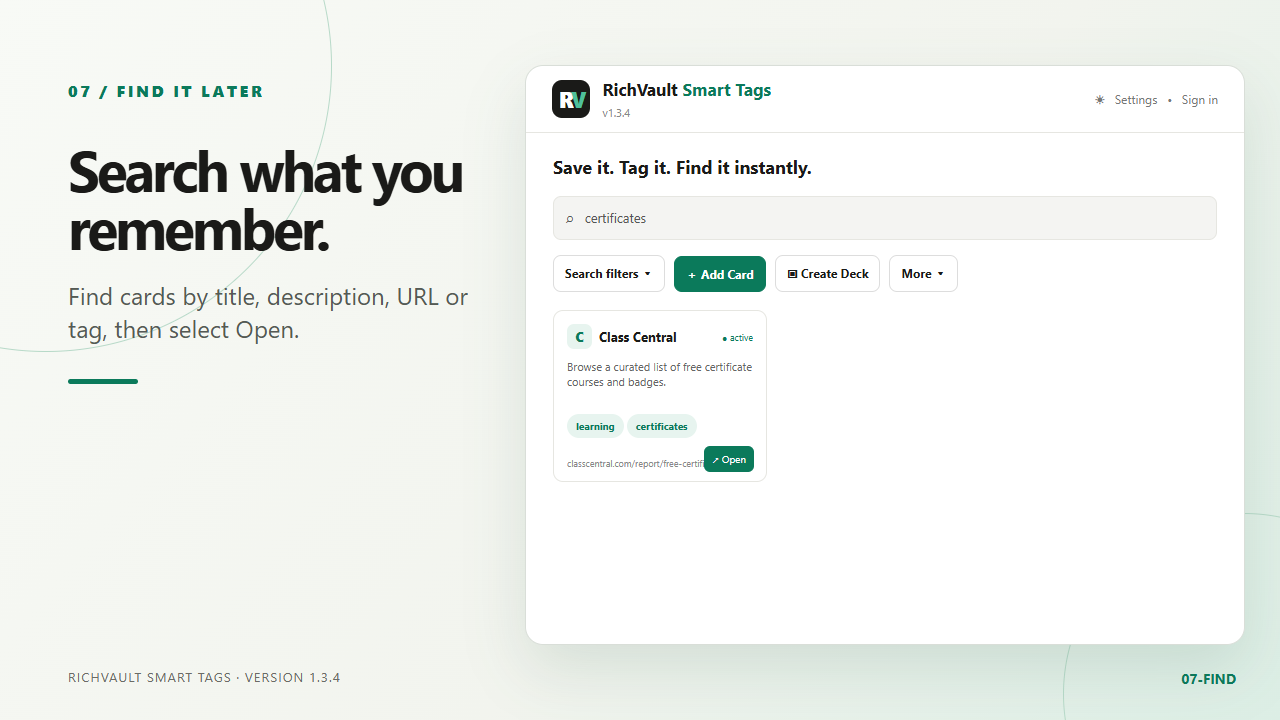
Search for certificates and open a saved card
9 · Search and open
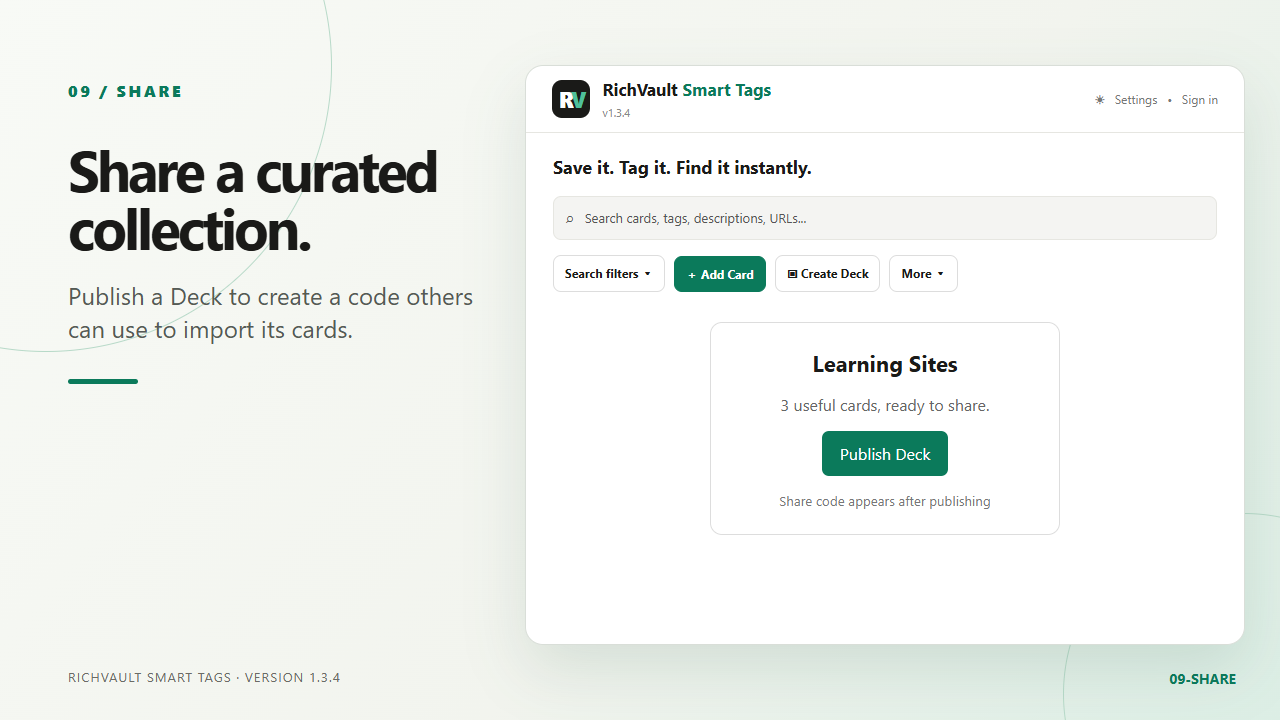
Publish a Deck to share its cards
10 · Share a Deck
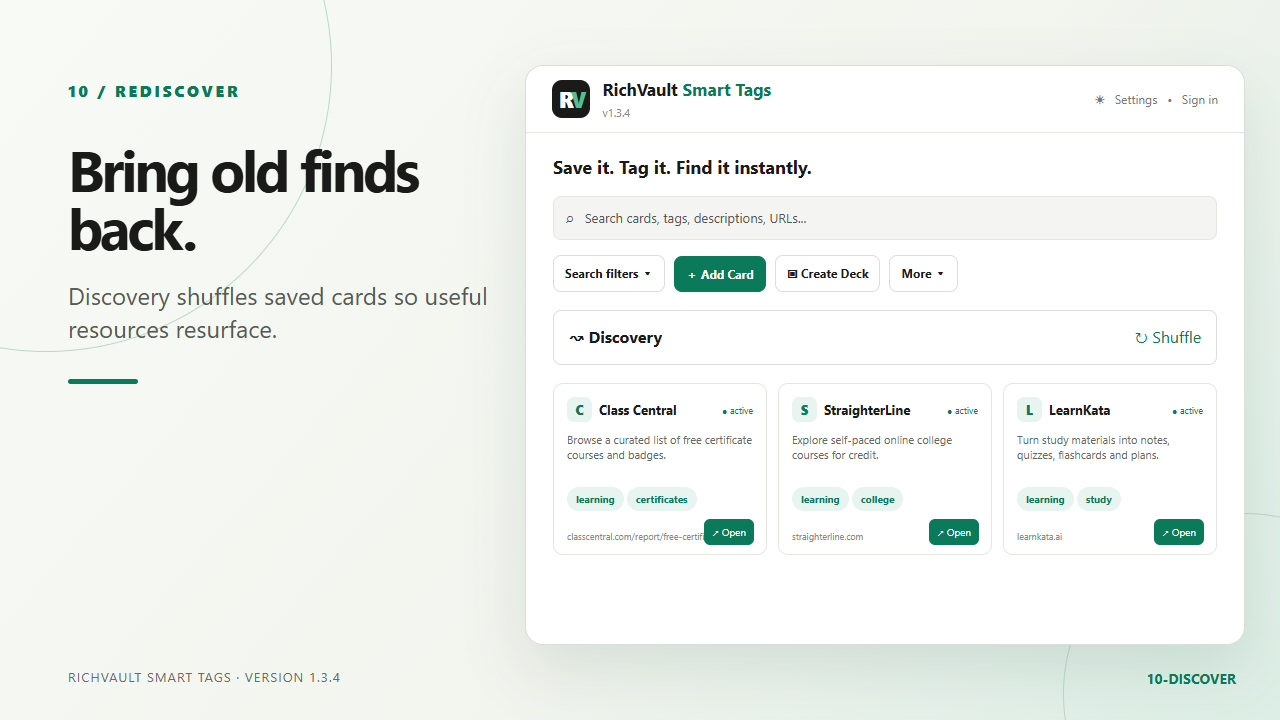
Discovery shuffle showing saved learning cards
11 · Rediscover cards
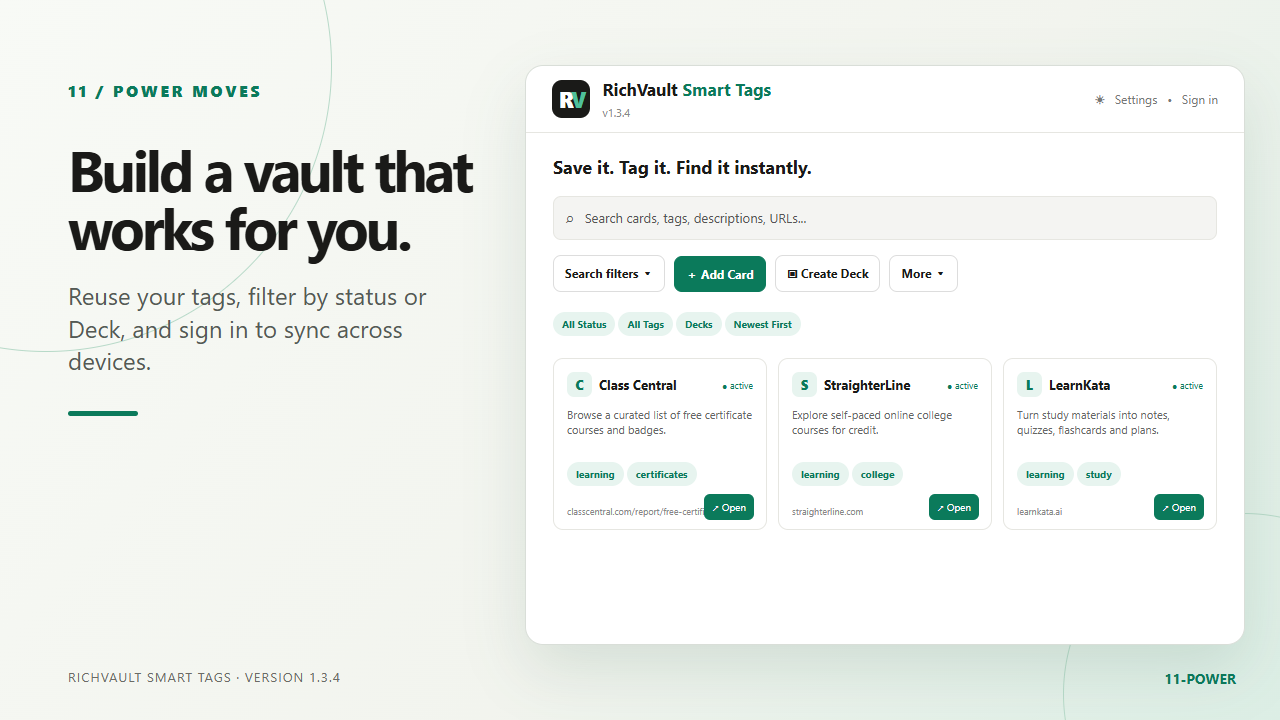
Status, tag, and Deck filters
12 · Filter your vault
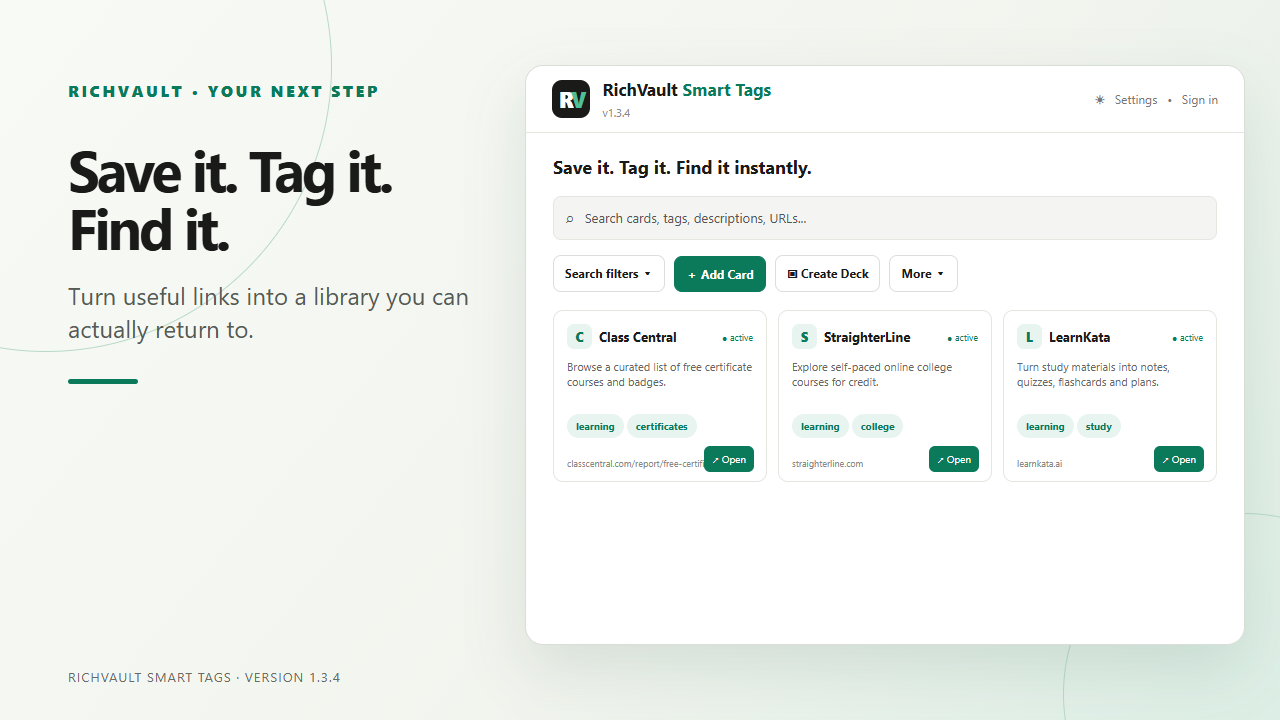
RichVault cards ready to explore
13 · Ready to go
Explore the product

Try RichVault for yourself.

Visit the live app to see how saving, tagging, and finding cards works.

See the live site ↗